
Last Updated: June 2026
Choosing a gaming mouse can be overwhelming — there are hundreds of options across every price point, shape, and feature set. This guide cuts through the noise and explains exactly what matters, what doesn’t, and how to find the right mouse for your specific needs. Whether you’re buying your first gaming mouse or upgrading from an old one, this is your complete reference.
Why a Gaming Mouse Makes a Difference
A dedicated gaming mouse isn’t just marketing. The differences over a standard office mouse are real and measurable:
Optical sensors in gaming mice track movement with precision and consistency that basic office mice can’t match. High polling rates (how often the mouse reports its position to the PC) reduce input lag. Purpose-built switches last tens of millions of clicks. Ergonomic designs reduce hand fatigue during extended sessions.
The result is more accurate cursor movement, faster response times, and more comfortable gaming. For casual gamers the difference is noticeable. For competitive players it’s significant.
Step 1 — Understand Your Grip Style
Your grip style is the single most important factor in choosing a gaming mouse — more important than brand, sensor, or price. A mouse that fits your grip perfectly but has a “lesser” sensor will outperform a top-tier mouse that fits poorly.
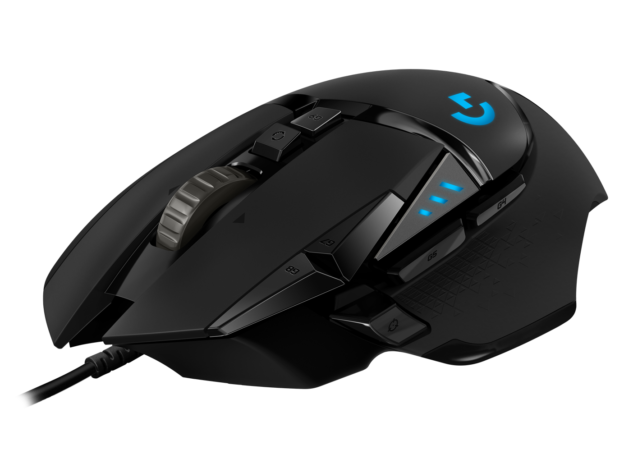
Palm grip — your entire hand rests on the mouse with fingers laid flat. You need a larger mouse with a high rear hump to support the palm. Ergonomic right-handed mice like the Razer DeathAdder and Logitech G502 are designed for palm grip. Best for players who use lower DPI settings and make larger arm movements.
Claw grip — fingers are arched with just the fingertips and base of the palm contacting the mouse. You can use medium to large mice. Both ergonomic and ambidextrous shapes work. Most versatile grip style — suits both FPS and general gaming.
Fingertip grip — only your fingertips contact the mouse, with the palm floating. You need a smaller, lighter mouse. Ambidextrous shapes with low profiles work best. Common among high-DPI players who make fast wrist movements.
Not sure which is your grip? Observe how you naturally hold your current mouse. Most players use a hybrid of palm and claw.
Step 2 — Choose the Right Shape
Right-handed ergonomic — sculpted for the right hand with a thumb rest and contoured body. Very comfortable for right-handed palm and claw grip players. Not usable left-handed. Examples: Razer DeathAdder V3, Logitech G502 Hero.
Ambidextrous — symmetrical shape that works for both hands and all grip styles. Generally more compact. The go-to choice for left-handed players and for claw/fingertip grip. Examples: Logitech G Pro X Superlight 2, Razer Viper V4 Pro.
Size matters — match the mouse size to your hand. A mouse that’s too small for large hands causes cramping. A mouse too large for small hands reduces control. Most brands publish length and width dimensions. Measure your hand from wrist crease to middle fingertip — under 17cm is small, 17–19cm is medium, over 19cm is large.
Step 3 — Understand the Key Specs
DPI (Dots Per Inch)
DPI measures how sensitive the mouse is — higher DPI moves the cursor further per inch of physical movement. The important thing to understand: more DPI is not better. Most competitive FPS players use 400–1600 DPI. What matters is adjustable DPI so you can set the sensitivity that suits you.
Any gaming mouse on the market in 2026 has sufficient DPI range. Don’t choose a mouse based on having the highest DPI number — it’s a marketing metric.
Polling Rate
Polling rate measures how many times per second the mouse reports its position to the computer. 1000Hz is the standard — meaning the mouse reports 1000 times per second. Higher polling rates (2000Hz, 4000Hz, 8000Hz) are available on premium mice and reduce input latency further. For most players 1000Hz is excellent. Competitive players at the highest level may notice improvements at 4000Hz+.
Sensor
In 2026 all reputable gaming mice use optical sensors with essentially flawless tracking. The days of noticeably different sensor quality between brands are largely over at the mid-to-premium tier. Logitech’s HERO 25K, Razer’s Focus Pro 30K/35K, and SteelSeries’ TrueMove sensors all perform at the top tier. Don’t agonize over sensor choice — focus on shape and fit first.
Switches
Switches are the mechanisms under the primary click buttons. Standard mechanical switches are the most common — reliable, tactile, and rated for 20–50 million clicks. Optical switches (used by Razer’s newer mice) use a light beam instead of physical contact — faster actuation, no double-clicking issues, and rated for 70–100 million clicks. For most players the difference in feel is subtle but the longevity advantage of optical is meaningful.
Weight
The trend toward ultralight mice (under 70g) is well-established in competitive gaming. Lighter mice reduce hand and wrist fatigue during long sessions and allow faster movements. However weight is personal — some players aim better with a heavier mouse that has more stability. If you’ve never tried an ultralight mouse it’s worth testing before committing to one.
General guideline:
- Under 70g — ultralight, suited to fast FPS play and fingertip/claw grip
- 70–100g — standard weight, works for most players and game types
- 100g+ — heavier, suits palm grip players and those who prefer stability
Step 4 — Wired or Wireless
Wired — zero latency, no battery management, typically cheaper. Still preferred by some competitive players who want absolute simplicity. The cable can create drag — a mouse bungee ($10–20) eliminates this completely.
Wireless (2.4GHz) — modern 2.4GHz proprietary wireless (Logitech LIGHTSPEED, Razer HyperSpeed) delivers 1ms response times indistinguishable from wired in competitive play. Wireless freedom improves desk cleanliness and range of movement. Requires battery charging or replacement. Premium wireless mice cost $30–70 more than their wired equivalents.
Bluetooth — not recommended for competitive gaming. Higher latency than 2.4GHz. Fine for casual use and connecting to laptops without a dongle.
The bottom line: if budget allows, wireless is worth it for the freedom. For tight budgets, wired delivers equivalent competitive performance for less money.
Step 5 — Button Count and Programmability
For most games 6 buttons is sufficient — left click, right click, scroll wheel click, two side thumb buttons, and a DPI toggle. The two side buttons are the most commonly used for in-game actions like weapon switching, push-to-talk, or extra keybinds.
For MMOs, MOBAs, and complex strategy games more buttons help significantly. Mice like the Logitech G604 (15 buttons) and Razer Naga (12 side buttons) are designed specifically for this. For FPS games extra buttons beyond 6–8 are generally unnecessary.
Software support matters for button remapping. Logitech G HUB and Razer Synapse are the most capable suites — both allow per-game profiles, macro recording, and lighting customization.
Step 6 — Set Your Budget
Under $30 — Entry level Solid gaming performance is absolutely achievable here. The Logitech G203 and Razer DeathAdder Essential both deliver accurate sensors and comfortable designs. Wireless at this price is possible (Logitech G305) but with older sensors.
$30–60 — Mid range The sweet spot for most gamers. The SteelSeries Rival 3, Logitech G502 Hero, and Razer DeathAdder V3 all sit here — flagship-tier sensors at accessible prices.
$60–100 — Upper mid range Wireless enters the picture seriously. The Logitech G703, Razer DeathAdder V3 HyperSpeed, and SteelSeries Aerox 3 Wireless offer premium wireless performance without flagship prices.
$100–180 — Premium The best of everything. Ultralight wireless mice like the Logitech G Pro X Superlight 2 and Razer Viper V4 Pro. Reserved for players who want zero compromises.
Matching Mouse to Game Type
FPS (Valorant, CS2, Apex, CoD) — prioritize lightweight (under 80g), accurate sensor, low latency wireless or wired, 6 buttons sufficient. Shape: ambidextrous or ergonomic matching your grip. Top picks: G Pro X Superlight 2, Razer DeathAdder V3, SteelSeries Rival 3.
MMO/MOBA (World of Warcraft, League of Legends) — prioritize programmable buttons (8–16), comfortable for long sessions, reliable software for macros. Weight and ultralight less important. Top picks: Logitech G604, Redragon M913.
General/Casual Gaming — prioritize comfort for your grip style and budget. Any mid-range mouse from a reputable brand serves well. Top picks: Logitech G502 Hero, Razer DeathAdder Essential, Logitech G203.
Strategy/RTS — similar to MMO — more buttons helpful, comfort for long sessions essential.
Common Mistakes to Avoid
Buying based on DPI alone — DPI is irrelevant beyond a sensible range. Focus on sensor quality, shape, and grip fit.
Copying pro player setups — professionals have different hand sizes, grip styles, and sensitivities than you. Their mouse may be wrong for your hand entirely.
Ignoring shape for specs — a mouse with a “better” sensor that fits your hand poorly will perform worse for you than a “lesser” mouse that fits well.
Overpaying for RGB — RGB lighting has zero impact on performance. Don’t pay a premium for it.
Buying the heaviest or lightest mouse available without trying it — weight preference is personal. If possible try before committing.
Quick Recommendation Summary
| Use Case | Budget Pick | Mid Range Pick | Premium Pick |
|---|---|---|---|
| FPS Gaming | Logitech G203 (~$25) | Razer DeathAdder V3 (~$55) | G Pro X Superlight 2 (~$145) |
| MMO/MOBA | Redragon M913 (~$35) | Logitech G604 (~$70) | Razer Naga V2 Pro (~$150) |
| General Gaming | Razer DeathAdder Essential (~$22) | Logitech G502 Hero (~$45) | Razer DeathAdder V4 Pro (~$145) |
| Wireless Budget | Logitech G305 (~$35) | DeathAdder V3 HyperSpeed (~$90) | Razer Viper V4 Pro (~$160) |
Frequently Asked Questions
How much should I spend on a gaming mouse?
For most players $30–60 covers everything you need. The Logitech G502 Hero at $40–50 has the same sensor as mice costing three times as much. Spending more gets you wireless, lighter weight, or optical switches — real improvements but not requirements for enjoying gaming.
Does a gaming mouse actually improve aim?
A gaming mouse with an accurate sensor and comfortable shape removes inconsistency from your aim — you’ll stop blaming your equipment. It won’t make you a better player overnight, but it removes a variable. A mouse that fits your hand well reduces fatigue which does improve consistency over long sessions.
How long does a gaming mouse last?
A quality gaming mouse should last 3–7 years with regular use. Mechanical switches are typically rated for 20–50 million clicks; optical switches for 70–100 million. The most common failure points are the scroll wheel and side buttons rather than primary clicks.
Is a gaming mouse good for office work too?
Yes — gaming mice are often more comfortable for all-day desk work than standard office mice. The extra buttons are useful for productivity shortcuts. Many people use gaming mice full time for work.