
Last Updated: May 2026
Building your own gaming PC is one of the best ways to get maximum performance for your money — and it’s more accessible than ever in 2026. But before you start buying parts, you need to understand what each component does and why it matters. This guide explains every component needed to build a gaming PC, what to look for, and how they work together.
Why Build Instead of Buy Prebuilt?
Building your own PC typically saves $100–200 compared to a prebuilt at the same performance level. You control every component choice, know exactly what’s inside, and can upgrade individual parts later. The build process itself takes 3–5 hours and is well-documented — YouTube has detailed tutorials for every step.
The one advantage of prebuilt is convenience and a single warranty. If you’re not comfortable building, prebuilt options from CyberpowerPC and SkyTech are reasonable alternatives, but you pay a premium for that convenience.
The Essential Components
1. CPU (Central Processing Unit) — The Brain
The CPU handles all the game logic, AI, physics calculations, and background processes. It directly determines how fast your PC processes instructions. For gaming, single-core performance (how fast one core runs) matters more than core count — most games can’t efficiently use more than 8–12 cores.
In 2026 the recommended gaming CPUs are:
- Budget: Intel Core i5-14400F (~$165) or AMD Ryzen 5 7600 (~$170)
- Mid-range: AMD Ryzen 5 9600X (~$195)
- High-end gaming: AMD Ryzen 7 9800X3D (~$400–450)
The CPU must be compatible with your motherboard’s socket type — verify compatibility before purchasing. For more detail see our Intel Gaming PC Build and AMD Gaming PC Build guides.
2. Motherboard — The Foundation
The motherboard is the main circuit board that connects all components. It determines which CPUs you can use (socket compatibility), how much and what type of RAM is supported, how many storage drives you can connect, and what expansion cards fit.
Key things to check:
- Socket — must match your CPU (AM5 for Ryzen 9000, LGA1700 for Intel 12th–14th gen)
- Chipset — B-series (budget, no overclocking) or X-series (premium, full overclocking)
- RAM type — DDR5 for AM5 and LGA1700 platforms; DDR4 for older platforms
- Form factor — ATX (full size), mATX (compact), or ITX (smallest)
Recommended brands: ASUS, MSI, Gigabyte, ASRock. Budget range: $100–200 for a solid gaming motherboard.
3. RAM (Random Access Memory) — Short-Term Memory
RAM is your PC’s short-term working memory. Games load assets, textures, and data into RAM for instant CPU access. When RAM fills up the PC uses the SSD as overflow — which is dramatically slower and causes stuttering.
In 2026:
- Minimum: 16GB DDR5
- Recommended: 32GB DDR5
- Type: DDR5 for new AM5 and LGA1700 builds; DDR4 for older platforms
- Speed: DDR5-6000 for AMD AM5, DDR5-5600 for Intel LGA1700
Always install RAM in matched pairs (2 sticks) in the correct dual-channel slots — check your motherboard manual for which slots to use. For more detail see our RAM guide.
4. GPU (Graphics Processing Unit) — The Gaming Engine
The GPU is the most important component for gaming performance. It renders every frame you see on screen — processing millions of polygons, textures, and lighting calculations per second. GPU performance determines what resolution you can game at, what frame rate you achieve, and what graphics settings are possible.
In 2026 the GPU sweet spots are:
- Budget 1080p: Intel Arc B580 (~$200) or AMD RX 9060 XT (~$300–350)
- Mid-range 1440p: AMD RX 9070 (~$450) or NVIDIA RTX 5060 Ti (~$400)
- High-end: AMD RX 9070 XT (~$550) or NVIDIA RTX 5070 (~$600)
The GPU is where you should spend the largest portion of your gaming PC budget. For a complete breakdown see our best graphics cards guide.
5. Storage — NVMe SSD
In 2026 an NVMe M.2 SSD is the only storage type worth buying for a new gaming PC build. It’s dramatically faster than both SATA SSDs and traditional hard drives — delivering faster game loading, faster Windows boot times, and support for DirectStorage game asset streaming.
- Minimum: 1TB NVMe PCIe 4.0 SSD
- Recommended: 2TB NVMe PCIe 4.0 SSD
- Top picks: Samsung 990 Pro, WD Black SN850X, Crucial P3 Plus (budget)
Traditional HDDs are still useful as secondary storage for archiving games not currently being played — 2–4TB HDDs cost $50–80 and provide cheap bulk storage alongside a fast NVMe primary drive. For more detail see our best SSDs guide.
6. PSU (Power Supply Unit) — The Power Source
The PSU converts wall power to the DC voltages your components need. An undersized or low-quality PSU causes crashes, instability, and in extreme cases can damage components.
Key things to check:
- Wattage — match to your GPU’s power requirements. For mid-range builds (RTX 5060 Ti/RX 9060 XT) a 650W PSU is sufficient. For high-end builds (RX 9070 XT/RTX 5070+) aim for 750–850W.
- Efficiency rating — 80+ Bronze minimum, 80+ Gold recommended for efficiency and component longevity
- Modular vs non-modular — modular PSUs only include cables you need, significantly improving cable management
- Brand — Corsair, Seasonic, and EVGA are reliable brands. Don’t cheap out on the PSU.
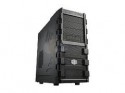
7. PC Case — The Housing
The case houses all your components and determines airflow quality, build difficulty, and aesthetics. Key considerations:
- Form factor — must support your motherboard size (ATX, mATX, or ITX)
- Airflow — look for mesh front panels and good fan mount positions
- GPU clearance — check maximum GPU length vs your GPU’s physical length
- CPU cooler clearance — check maximum CPU cooler height
- Cable management — good cases have routing channels behind the motherboard tray
Top mid-tower picks in 2026: Fractal Design Pop Air (~$90), Lian Li Lancool 216 (~$100), Corsair 4000D Airflow (~$100). For more detail see our PC case guide.
8. CPU Cooler — Keeping Temperatures in Check
Every CPU needs a cooler to dissipate heat. Some CPUs include a stock cooler in the box — adequate for basic operation but an aftermarket cooler significantly lowers temperatures and noise.
Options:
- Stock cooler — included with some CPUs. Adequate but loud and limited
- Budget air cooler — Arctic Freezer 36 (~$30) — significant improvement over stock
- Mid-range air cooler — Thermalright Peerless Assassin 120 SE (~$38) — excellent value, handles most gaming CPUs comfortably
- AIO liquid cooler — 240mm or 360mm radiator for high-TDP CPUs or aesthetics preference
For more detail see our best CPU coolers guide.
9. Operating System
Windows 11 Home is the standard gaming OS in 2026. Most games are developed and optimized for Windows first. Cost is approximately $100–120 for a retail license.
Alternatives: Windows 10 (Microsoft ends support October 2025 — not recommended for new builds), Linux gaming via Steam Proton (free, excellent compatibility for many games but some titles don’t work).
Optional but Recommended Components
Case fans — most cases come with 1–2 fans. Adding 2–3 additional 120mm or 140mm fans ($10–20 each) significantly improves airflow and temperatures.
WiFi card — if your motherboard doesn’t have built-in WiFi (most mid-range and above boards do) a PCIe WiFi card adds wireless connectivity. Cost: $20–50.
Sound card / DAC — most modern motherboards include good onboard audio. A dedicated sound card is only needed for high-impedance headphones or specific audio setups. See our Do I Need a Sound Card guide.
Optical drive — not needed in 2026. All games and software are available digitally or via USB.
What You Don’t Need Inside the PC
A common question from first-time builders — some older guides recommend components that are no longer necessary:
Sound card — onboard audio on modern motherboards is excellent for gaming headsets. See our sound card guide.
Optical drive — completely optional. Physical media is largely obsolete.
HDD as primary drive — HDDs are still useful as secondary storage but should never be a primary gaming drive in 2026. NVMe SSDs are dramatically faster.
Dedicated network card — all modern motherboards include gigabit ethernet onboard. A dedicated network card is unnecessary for gaming.
Total Budget Breakdown
| Component | Budget Build | Mid-Range Build |
|---|---|---|
| CPU | i5-14400F ~$165 | Ryzen 5 9600X ~$195 |
| Motherboard | B760M ~$110 | B650M ~$120 |
| RAM | 16GB DDR5 ~$50 | 32GB DDR5 ~$90 |
| GPU | RX 9060 XT ~$330 | RX 9070 ~$450 |
| Storage | 1TB NVMe ~$70 | 2TB NVMe ~$120 |
| Case | ~$80 | ~$100 |
| PSU | 650W ~$70 | 750W ~$90 |
| CPU Cooler | ~$35 | ~$40 |
| Total | ~$910 | ~$1,205 |
Where to Buy Components
Amazon — convenient, fast shipping, good return policy. Prices fluctuate frequently.
Newegg — specialist PC component retailer with good selection and frequent sales.
PCPartPicker.com — not a store but an essential tool. Enter your components and it checks compatibility, finds the best current prices across retailers, and flags potential issues. Use it before buying anything.
Microcenter — physical stores with excellent prices and in-store expertise. Only available in select US cities but worth visiting if you have one nearby.
Frequently Asked Questions
Is building a PC difficult?
Not with modern tools and resources. Modern cases have tool-free component installation, PCPartPicker checks compatibility automatically, and YouTube has step-by-step build guides for every case and component combination. Most first-time builders complete their build in 3–5 hours.
What order do I assemble PC components?
General order: install CPU on motherboard → install RAM → install CPU cooler → install M.2 SSD → mount motherboard in case → install PSU → install GPU → connect all cables → boot and install Windows.
Do I need thermal paste?
Thermal paste fills microscopic gaps between the CPU and cooler for efficient heat transfer. Most aftermarket CPU coolers include thermal paste pre-applied or in a syringe. If your cooler doesn’t include it, Arctic MX-6 (~$8) is the standard recommendation.
Can I reuse components from my old PC?
Potentially — storage drives, GPU, PSU, and case can often be reused if compatible. CPU and RAM typically can’t be reused across platform generations due to socket and memory type changes.