
Last Updated: May 2026
An overheating computer is one of the most common PC problems — and one of the most damaging if left unchecked. Modern CPUs and GPUs automatically throttle their performance when temperatures get too high, meaning an overheating PC is often a slow PC. In severe cases, prolonged overheating causes permanent hardware damage.
The good news is that most overheating issues are fixable, often for free. This guide covers every common cause, how to diagnose the problem, and exactly how to fix it.
What Are Safe Computer Temperatures?
Before diagnosing an overheating problem, it helps to know what normal temperatures look like.
CPU temperatures:
- Idle (desktop, light use): 30–50°C — normal
- Under gaming load: 70–85°C — normal for most CPUs
- Under gaming load: 85–95°C — getting warm, worth monitoring
- Above 95°C consistently — too hot, needs attention
- Above 100°C — thermal throttling or emergency shutdown territory
GPU temperatures:
- Idle: 30–50°C — normal
- Under gaming load: 65–85°C — normal
- Under gaming load: 85–95°C — warm but within spec for many GPUs
- Above 95°C consistently — investigate cooling
Note that different CPUs and GPUs have different thermal limits — check your specific hardware’s specifications for exact safe ranges. AMD and Intel both publish maximum junction temperatures (Tjmax) for their processors.
How to Monitor Your Temperatures
Before you can fix an overheating problem you need to measure it. Several free tools make this easy:
HWiNFO64 — the most comprehensive free hardware monitoring tool available in 2026. Shows real-time temperatures for CPU, GPU, motherboard, and storage. Highly recommended.
MSI Afterburner — primarily a GPU overclocking tool but excellent for monitoring GPU temperatures and usage in real time, including an in-game overlay.
Core Temp — lightweight CPU temperature monitor, easy to read at a glance.
BIOS/UEFI — your motherboard’s BIOS shows CPU temperatures at boot. Access it by pressing F2, F10, or Delete during startup.
Download HWiNFO64, run it while playing a demanding game for 30 minutes, and check the maximum temperatures recorded. This tells you exactly how hot your system is getting under real load.
Common Causes of Computer Overheating
1. Dust Buildup
This is the most common cause of overheating in PCs that are more than 2–3 years old. Dust accumulates on fans, heatsinks, and intake/exhaust vents, reducing airflow and insulating components that need to stay cool. A heavily dust-clogged PC can run 10–20°C hotter than a clean one.
2. Failing or Inadequate Case Fans
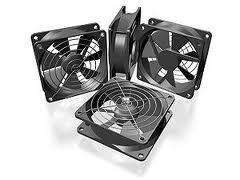
If a case fan fails or your PC has poor airflow design, hot air builds up inside the case. Gaming PCs generate significant heat from both the CPU and GPU simultaneously and need adequate airflow to remove that heat efficiently.
3. Degraded Thermal Paste
Thermal paste fills microscopic gaps between your CPU/GPU and their heatsinks, allowing heat to transfer efficiently. Over time — typically 3–7 years — thermal paste dries out and loses effectiveness, causing temperatures to creep up significantly. This is especially common in laptops.
4. Heavy Gaming or Workloads
Gaming pushes CPU and GPU to sustained high utilization levels, generating far more heat than general desktop use. A PC that runs fine during light tasks may overheat during extended gaming sessions.
5. Poor Case Airflow or Cable Management
A case with blocked intake vents, no exhaust fans, or cables blocking airflow paths will retain heat regardless of how good the individual cooling components are. Positive airflow (more air in than out) or neutral airflow (balanced intake and exhaust) are both effective configurations.
6. Overclocking
Pushing your CPU or GPU beyond their stock clock speeds generates significantly more heat. Overclocked hardware requires better cooling than stock setups.
7. High Ambient Temperature
Gaming in a hot room adds to the thermal load your cooling system has to handle. A PC that stays cool in a 20°C room may overheat in a 30°C room.
8. Blocked Vents on Laptops
Laptops draw cool air from vents on the bottom of the chassis. Gaming on a soft surface like a bed or couch blocks these vents entirely, causing rapid temperature increases.
Signs Your Computer Is Overheating
- Unexpected shutdowns during gaming or heavy use — the most serious sign
- Blue screens (BSoD) that appear under load but not during light use
- Frame rate drops and stuttering mid-game (thermal throttling in action)
- Graphical glitches — artifacts, flickering, or color corruption on screen
- Loud fans running at full speed constantly
- PC feels extremely hot to the touch, especially near vents
- System is sluggish after being under load for a while (CPU throttling)
How to Fix an Overheating Computer
Fix 1 — Clean Out Dust (Free, Most Impactful)
This should always be the first step. Shut down and unplug the PC, take it outside or to a well-ventilated area, open the case, and use compressed air to blow dust out of all fans, heatsinks, and vents. Pay particular attention to the CPU cooler fins and GPU heatsink — these accumulate the most dust and have the biggest impact on temperatures.
For laptops, focus on the bottom intake vents and side/rear exhaust vents. A can of compressed air through the vents can dislodge significant dust buildup without opening the laptop.
Clean your PC every 6–12 months to prevent buildup.
Fix 2 — Improve Case Airflow
Check your case fan configuration. A basic effective setup is intake fans at the front and bottom pulling cool air in, and exhaust fans at the rear and top pushing hot air out. If your case has empty fan mount positions, adding fans is inexpensive — a decent 120mm or 140mm case fan costs $10–20.
Also check your cable management. Cables running across the main airflow path restrict airflow significantly. Routing cables behind the motherboard tray or bundling them neatly makes a measurable difference.
Fix 3 — Reapply Thermal Paste
If your PC is 3+ years old and temperatures are high despite cleaning, degraded thermal paste is likely a contributing factor. This is a more involved fix but very effective.
You’ll need thermal paste (Arctic MX-6 and Thermal Grizzly Kryonaut are well-regarded options in 2026, both available for around $8–12), isopropyl alcohol (90%+ for cleaning), and lint-free wipes.
Remove the CPU cooler, clean the old thermal paste off both the CPU surface and cooler base using isopropyl alcohol and a lint-free cloth, apply a small pea-sized amount of new paste to the center of the CPU, and reinstall the cooler. Intel has a detailed guide on this process, as does Thermal Grizzly.
For laptops, repasting is more involved but often delivers dramatic temperature improvements — 10–20°C drops are common on aging gaming laptops.
Fix 4 — Upgrade Your CPU Cooler
Stock coolers that ship with CPUs are adequate for default clock speeds but leave little thermal headroom. An aftermarket tower cooler like the Thermalright Peerless Assassin 120 (around $35) or be quiet! Dark Rock 4 (around $60) delivers significantly better cooling than most stock coolers and runs much quieter.
Fix 5 — Adjust Fan Curves
Most motherboards allow you to customize fan speed curves through BIOS or software like Fan Control (free). Setting fans to ramp up more aggressively at moderate temperatures keeps the system cooler before it gets hot rather than waiting until temperatures are already high.
Fix 6 — Laptop Cooling Pad
For laptops, a cooling pad that elevates the laptop and adds external fans can drop temperatures by 10–20°C. We reviewed the best options in our laptop cooling pads guide.
Fix 7 — Move the PC
If the PC sits in an enclosed desk cabinet or small space with restricted airflow, moving it to an open area makes a real difference. Similarly, gaming in an air-conditioned room versus a hot one can be the difference between a healthy 75°C and a throttling 95°C.
Overheating Risks — Why It Matters
Sustained high temperatures cause real damage over time. Electromigration in CPU and GPU silicon accelerates at high temperatures, gradually degrading performance. Capacitors on the motherboard degrade faster when hot. In severe cases, a sudden thermal event can kill hardware permanently.
Beyond hardware damage, a throttling CPU or GPU delivers noticeably worse gaming performance. If your PC isn’t hitting the frame rates it should, thermal throttling may be silently reducing your clock speeds.
Frequently Asked Questions
What temperature is too hot for a gaming PC?
For CPUs, sustained temperatures above 90–95°C under load are concerning for most processors. For GPUs, above 90–95°C sustained is worth investigating. Check your specific hardware’s Tjmax specification — this is the maximum safe operating temperature published by the manufacturer.
Can overheating damage my GPU permanently?
Yes — sustained extreme temperatures can permanently damage GPU silicon, VRAM, and the PCB. Modern GPUs have thermal protection that throttles and shuts down before catastrophic failure, but repeated thermal events over time degrade the hardware.
How often should I clean my PC?
Every 6–12 months for most environments. If you have pets, smoke nearby, or live in a dusty environment, every 3–6 months. A PC that looks clean externally can still have significant dust buildup on internal heatsinks.
My laptop gets very hot when gaming — is that normal?
Gaming laptops run hotter than desktops by design — they pack high-performance hardware into a small chassis with limited cooling. Temperatures of 85–90°C on a gaming laptop CPU under full load are common and within spec for most models. Above 95°C sustained is worth addressing with cleaning, repasting, or a cooling pad.
You can certainly see your expertise in the work you write.
The arena hopes for even more passionate writers such as you who aren’t afraid to say how they believe.