
Last Updated: May 2026
Buying gaming peripherals can feel overwhelming — hundreds of options across mice, keyboards, headsets, and mousepads at every price point. This guide cuts through the noise and explains exactly what to consider before spending your money, what specs actually matter, and what’s just marketing.
Why Gaming Peripherals Matter
Gaming peripherals directly affect your experience in ways that are easy to underestimate. A mouse that doesn’t fit your hand causes fatigue and inaccuracy. A keyboard with the wrong switches slows your reaction time. A headset with poor positional audio means you miss footsteps and directional cues. A mousepad with inconsistent tracking introduces subtle errors in every movement.
The good news is that you don’t need to spend a fortune. The budget to mid-range peripheral market in 2026 is excellent — great gaming peripherals are available at every price point from $20 upward.
Gaming Mouse — What to Consider
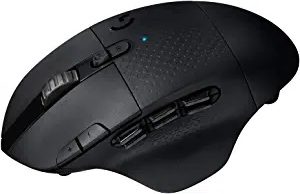
Grip style first. This is the most important factor. Palm grip players need larger ergonomic mice. Claw and fingertip grip players can use smaller ambidextrous shapes. Buy a mouse that fits your hand before worrying about sensor specs. See our full gaming mouse buying guide for a detailed breakdown.
Wired vs wireless. Modern 2.4GHz wireless (Logitech LIGHTSPEED, Razer HyperSpeed) is indistinguishable from wired in competitive play. Wireless costs more but the freedom is worth it for most players. Budget buyers should start wired.
Sensor quality. All reputable gaming mice in 2026 use accurate sensors. Don’t agonize over sensor comparisons — shape and fit matter more.
DPI. Most competitive players use 400–1600 DPI. Higher DPI is not better — it’s just a sensitivity setting. Adjustable DPI is what matters, not maximum DPI.
Budget guide:
- Under $30 — Logitech G203, Razer DeathAdder Essential
- $30–60 — Logitech G502 Hero, SteelSeries Rival 3
- $60–100 — Logitech G305, Razer DeathAdder V3 HyperSpeed
- $100+ — Logitech G Pro X Superlight 2, Razer Viper V4 Pro
Gaming Keyboard — What to Consider
Switch type. This is the most personal choice in peripherals. Mechanical switches are the standard for gaming — tactile (bump feedback without click), clicky (bump + audible click), or linear (smooth, quiet). Try switches before buying if possible. Most gaming stores have tester boards.
Form factor. Full-size keyboards include a numpad. TKL (tenkeyless) drops the numpad for more mouse space. 60% and 65% are compact layouts popular with competitive players. Consider your desk space and whether you use the numpad.
Wireless. Less important for keyboards than mice since keyboards don’t move. Wireless keyboards like the Logitech G915 are premium products — wired keyboards deliver identical gaming performance at lower prices.
Keycap quality. PBT keycaps are harder and more durable than ABS — legends don’t fade with heavy use. Worth prioritising at mid-range and above prices.
Budget guide:
- Under $50 — SteelSeries Apex 3, HyperX Alloy Core
- $50–100 — Razer BlackWidow V4, HyperX Alloy Origins
- $100–150 — SteelSeries Apex Pro, Razer Huntsman V2
- $150+ — Logitech G915 X, Corsair K100 Air
Gaming Headset — What to Consider
Wired vs wireless. Wireless gaming headsets have improved significantly. For console gaming wireless is particularly useful. For competitive PC gaming wired is still common but wireless options from SteelSeries and Logitech are excellent.
Open vs closed back. Closed-back headsets provide passive noise isolation — better for shared spaces. Open-back headsets have wider soundstage and more natural audio — better for positional audio in competitive games but let in ambient noise.
Microphone quality. If you stream or communicate heavily, microphone quality matters. Look for detachable or retractable microphones with noise cancellation. The Logitech G Pro X’s Blue Voice and SteelSeries ClearCast Gen 2 are the best microphone options in gaming headsets.
Virtual surround. Software-based virtual surround (DTS, Dolby Atmos, Windows Sonic) improves positional audio in FPS games. Most gaming headsets include some form of virtual surround via USB connection or software.
Budget guide:
- Under $50 — Razer BlackShark V2, HyperX Cloud II
- $50–100 — Logitech G Pro X, HyperX Cloud III
- $100–150 — SteelSeries Arctis Nova Pro, Logitech G Pro X 2
- $150+ — SteelSeries Arctis Nova Pro Wireless
Gaming Mousepad — What to Consider
Often overlooked but important. A quality mousepad provides a consistent tracking surface, protects your mouse feet, and gives you more room to move.
Size. Medium pads suit most setups. Large and extended (desk mat) sizes are recommended for low DPI players who make wide arm movements.
Surface. Cloth is the most popular — balanced speed and control. Hard pads offer faster glide but less control. Stick with cloth unless you specifically prefer fast glide.
Stitched edges. Prevent fraying over time — worth looking for at any price point.
Budget guide:
- Under $20 — SteelSeries QcK, Razer Gigantus V2, HyperX Pulsefire Mat
- $20–50 — Logitech G640, SteelSeries QcK Heavy
- $50+ — Artisan Hien, Razer Strider
Gaming Monitor — What to Consider
Refresh rate. 144Hz minimum for gaming. The jump from 60Hz to 144Hz is immediately and dramatically noticeable. 165–180Hz is the current sweet spot. 240Hz+ for serious competitive players.
Resolution. 1440p at 27 inches is the sweet spot in 2026. Sharper than 1080p without requiring a high-end GPU.
Panel type. IPS for best color and response time. VA for higher contrast. Mini-LED VA for the best of both. Avoid TN panels in 2026.
HDR. Only meaningful on monitors with Mini-LED backlighting and DisplayHDR 600+ certification. Basic DisplayHDR 400 stickers are largely marketing.
Budget guide:
- Under $200 — ASUS TUF VG27AQ3A (1440p 180Hz IPS)
- $200–300 — AOC Q27G3XMN (1440p 180Hz Mini-LED)
- $300–500 — LG 27GR95QE (1440p 240Hz OLED)
Common Mistakes to Avoid
Prioritizing specs over fit — a mouse with the best sensor that doesn’t fit your hand will underperform a lesser mouse that fits perfectly.
Buying brand sets — Razer or Logitech branded everything isn’t necessary. Mix brands to get the best value at each category.
Overspending on one category — a $200 headset paired with a $20 mouse is unbalanced. Spread your budget evenly across categories for the best overall experience.
Ignoring the mousepad — gaming on a bare desk or standard office pad is limiting your mouse sensor’s performance. A $15–20 gaming mousepad is one of the best value upgrades available.
Chasing maximum specs — the highest DPI, most buttons, or fastest switches don’t automatically mean better gaming. Match specs to your actual needs.
Frequently Asked Questions
Should I buy a peripheral bundle or individual components?
Individual components — peripheral bundles are convenient but typically include compromises in one or more categories. Buying separately lets you optimize each component for your needs and budget.
How much should I spend on gaming peripherals total?
A solid starter peripheral setup — mouse, keyboard, headset, mousepad — can be assembled for $100–150 buying budget options. A mid-range setup runs $200–350. There’s no need to spend more than $500 total unless specific premium features matter to you.
Do I need gaming peripherals for casual gaming?
Not strictly — but a gaming mouse and mousepad make a noticeable difference even for casual players. A gaming headset improves communication and immersion. A mechanical keyboard is more satisfying to type and game on than a membrane keyboard. Even at the budget tier the improvements are worth the modest cost.